Google Vids Review: Pricing, Features, Limits and Alternatives
Google Vids review covering the AI video app’s features, monthly AI limits by account, Workspace pricing and who should pick another tool.
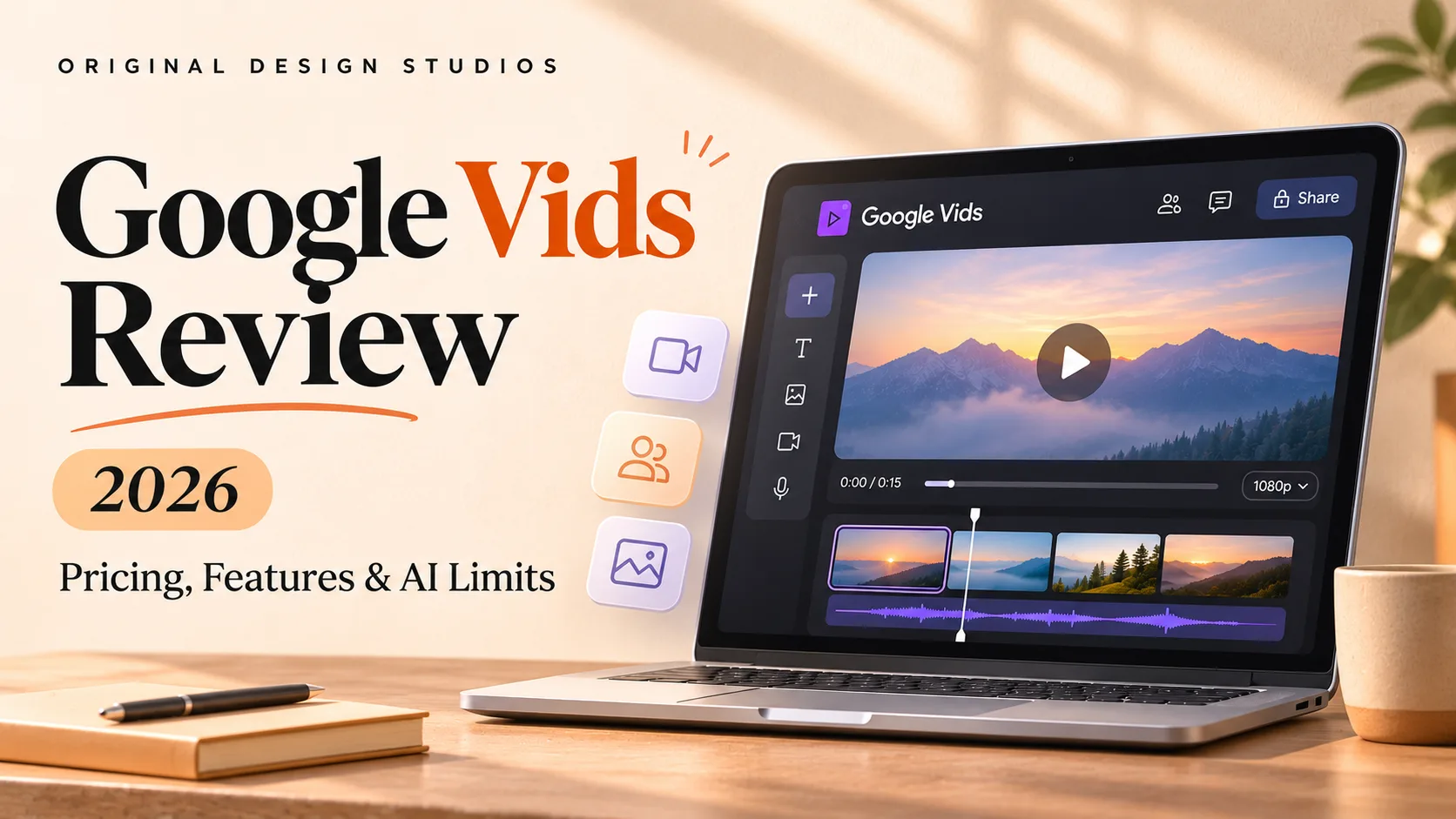
Google Vids is the video app inside Google Workspace. The editor is free, but everything AI generates is capped by account type, from 60 seconds of AI video a month on a free account to 2,000 on the largest add-on.
Published numbers disagree as well. Google's help page lists 60 seconds for a free account, while Google's announcement of its newest video model promises three 15-second videos a month. This Google Vids review sorts out which figure to trust, prices every plan, covers safety and limits, and shows when Loom, Clipchamp or CoAnimator is the better start.
What Google Vids Is and How to Start
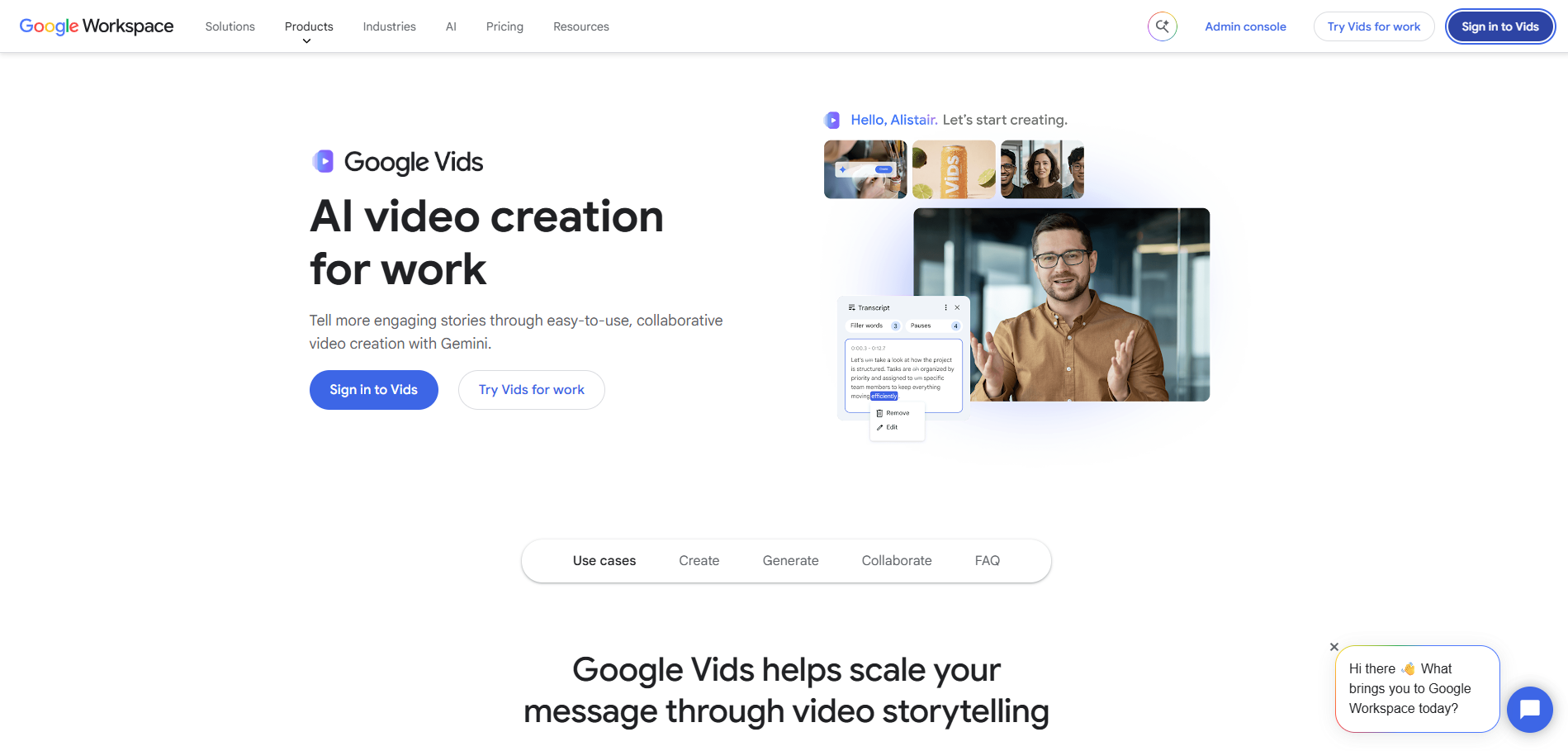
Google Vids is Google's AI video app for work, built to turn slides, recordings and prompts into videos for training, onboarding and pitches. A first draft takes four steps.
Open a new video: Go to
vids.newin Chrome or Firefox, or in Edge on Windows.Pick the frame shape: Choose Landscape, Portrait or Square first, and use our aspect ratio and frame tool when a platform needs exact dimensions.
Choose a starting path: The start menu offers AI video creation, AI edits of existing clips, an AI avatar, Slides conversion, recording, uploads, templates and a blank video. Accounts without AI access do not see the AI options.
Read the script first: Help me create and Slides conversion both write a script for every scene, so fix the wording in the script panel before touching the timeline.
The next section explains what each path produces.
What Google Vids Does Well
A first draft starts from a prompt or from a deck. Help me create takes a prompt and lets the writer add Docs or Slides files with the @ symbol. It returns an editable storyboard with a script and voiceover for each scene, stock media, background music and placeholders for the writer's own recordings. Slides conversion turns each selected slide into a scene and imports speaker notes as scripts.
From there, editing works like a document. Cuts follow the spoken transcript, so removing a sentence means deleting words, and the feature works best for cutting on the change of intent, not only for removing pauses. The recording studio captures a screen, a camera or both, and personal files arrive from Drive or Photos.
Generated footage comes from Gemini Omni, Google's video model. It makes clips from text, animates images with sound and edits existing clips. Version 1.1 added 1080p output and exact durations, and version 1.2 raised clips to 15 seconds, so longer videos still mix generated scenes with recordings and slides. AI avatars read a script on camera and AI voiceovers handle narration. Either voice track should pass the playback test in our principle on making speech intelligible before music and effects, and a recorded employee still suits messages that depend on personal credibility.
Sharing follows Docs, Sheets and Slides, with viewer, commenter and editor roles. Finished videos export as MP4 or GIF, to Drive, or to YouTube, where they land as private on the default channel.
Is Google Vids Free?
Yes, the editor is free, and AI generation is limited by account.
Google Vids' basic features work with any Google account. A personal account also gets 6 preset AI avatars, 60 seconds of AI video and 50 credits a month. Credits pay for the smaller AI tools. Help me create costs 5, a voiceover costs 1, an image action costs 1 and a Slides conversion with AI voiceovers costs 5, so ten uses of Help me create use up the whole month. Credits reset at 12:00 AM Pacific on the first of the month, do not roll over and cannot be shared.
The 60-second figure collides with Google's announcement of Omni 1.2, which offers up to three 15-second videos a month at no cost, or 45 seconds. Some reviews quote other figures again, such as 6 clips or 10 generations. We would plan around the lowest number until the account in question shows more. Our guide to AI video generation explains how text-to-video works and which tools suit which job.
Paid plans raise these limits, and the next section puts a price on each.
Google Vids Pricing by Plan
Each plan sets its own monthly limits for AI video, avatars and images, so a price only means something next to those limits. All prices below are in US dollars and exclude tax.
Individual Plans
Account | Price per month | AI video seconds | AI avatars | Images | Personal avatars |
|---|---|---|---|---|---|
Personal Google account | $0 | 60 | 6 | Uses credits | No |
Google AI Plus | $4.99 | 60 | 6 | Uses credits | No |
Google AI Pro | $19.99 | 500 | 25 | 30 | Yes |
Google AI Ultra plans, from $99.99 a month, go higher, with 2,500 AI video seconds on Ultra 5x and 10,000 on Ultra 20x.
Team Plans
Plan | Price per user per month | AI video seconds | AI avatars | Images | Personal avatars |
|---|---|---|---|---|---|
Starter | $7 | 200 | 10 | 5 | Yes |
Standard | $14 | 500 | 25 | 30 | Yes |
Plus | $22 | 500 | 25 | 30 | Yes |
AI Expanded Access add-on | Sold separately, no price listed | 2,000 | 100 | 300 | Yes |
Team prices are on the annual commitment, and Vids is listed on Starter, Standard, Plus and Enterprise on Google's Workspace pricing page. That page also shows a temporary new-customer discount, which the table leaves out.
What the Limits Mean in Use
Two upgrades add no Vids capacity. Google AI Plus matches a personal account, and Plus matches Standard, so those buyers are paying for storage and other tools.
The limits run out fast. Eight videos a month with three 10-second AI scenes each need 240 seconds, which overshoots Starter's 200 and fits inside Standard's 500. Regenerated scenes probably count against the same limit, so budget for attempts and not only for the final footage.
Two smaller caps sit outside the tables. Slides conversion with AI avatars is capped at 5 a month on Starter and 10 on Standard and Plus. Generated music is capped at 20 thirty-second clips and 10 full songs on Starter, against 50 and 20 on Standard and Plus.
With cost settled, the next question is what happens to the content.
Safety and Privacy at Work
Google publishes privacy terms for Gemini in Workspace apps, and a few of them depend on the account type.
Training: Google says Gemini in Workspace apps, Vids included, does not use customer content to train or improve Gemini or other generative AI without permission.
Human review: For business, education and public sector customers, content is not human reviewed or used for training outside the domain without permission.
Access: Gemini only retrieves content that the person can already open.
Admins: On work and school accounts, admins control access to Vids and can switch off the AI features.
Personal accounts: A personal account that chooses to share data with Google's consumer Gemini app or Search falls under those services' terms, which allow use for model training.
Accuracy: Google warns that Gemini may suggest inaccurate or inappropriate content, so read every script and image before sharing.
Privacy is only half the picture, because the product has limits of its own.
Where Google Vids Falls Short
Four limits matter most before a team commits.
Shared image limit: Image generation counts across Vids, Slides and Docs, so Starter's 5 images a month are shared with those apps.
A 45-slide ceiling: Converting a deck with AI voiceover, script, music and animation handles up to 45 slides, and longer decks need that option switched off.
Plan gaps: Workspace Frontline plans carry no Gemini features in Vids, and Education Fundamentals and Standard list no AI limits at all.
Creative control: AIToolCrunch's review rates creative control and avatar realism below Runway, Synthesia and HeyGen. That is one reviewer's opinion and not a tested comparison, and our roundup of Synthesia alternatives covers the avatar side in depth.
Those limits explain why some teams start in a different tool.
Google Vids Alternatives
Vids starts from slides or a prompt, and each rival starts somewhere else. Teams beginning from a PowerPoint deck have yet another route, covered in our guide to converting PowerPoint to video, and readers comparing a wider field of editors can start with our look at VEED.io alternatives.
Tool | Starts from | Cost | Main limits | Pick it when |
|---|---|---|---|---|
Google Vids | Slides, prompts and recordings | Free editor, with AI capped by plan | Monthly AI limits that vary by account | The team already works in Workspace |
Screen and camera recordings | Free Starter, with Business at $18 per user per month | Starter stops at 25 videos per person, 5-minute screen recordings and 720p, and edit by transcript needs Business + AI | A quick walkthrough matters more than an edited video | |
A conventional timeline in the browser or the Windows app | Free with watermark-free exports up to 1080p, and Premium is included in Microsoft 365 Personal and Family | 4K export, premium stock, premium filters and effects, and the brand kit need Premium | One editor wants free 1080p with AI subtitles and voiceovers outside Workspace | |
A brief given to a coding agent such as Claude Code or Codex, which builds scenes in a desktop studio | Free forever, plus a one-time lifetime licence | No AI avatars, and output depends on the connected agent | The video is built and revised from a development workflow |
Is Google Vids Worth It?
Yes for Workspace teams that start from slides or recordings and generate AI video sparingly.
Choose Vids when: Review follows the sharing roles the team already uses for documents, and the monthly AI limit on its plan covers the videos it plans.
Look elsewhere when: The video needs fine creative control, the starting point is a quick screen share or a conventional timeline, or the plan depends on more than 500 AI seconds a month without the add-on.
On plans, we would hold off on Standard until a real project hits the Starter limits.
Questions
5Can I edit with Google Vids on my phone?
No, not editing. Vids creation and editing are only available on a computer, so a phone browser can play a finished video once it has been processed but cannot edit it or add comments. If you shoot on your phone, send the clips to Google Drive or Google Photos and add them from Vids on a computer. Safari on a computer cannot edit or comment either.
How long can a Google Vids video be?
A Google Vids video can be up to 30 minutes long. You can import a longer clip, up to 95 minutes or 4 GB, but until it is under 30 minutes the only edit allowed is shortening it, so a longer course is better split into separate videos.
Does Google Vids support vertical video?
Yes. Choose Portrait for vertical video, or Square, on the start menu when you begin a new video. Filmora's review says vertical is missing, but Google's current help page lists Landscape, Portrait and Square.
Does Google Vids work in languages other than English?
Partly. Many AI features in Vids are English only, and the features that list languages differ in coverage. Images and avatars each cover 29 languages, voiceovers cover 23, and Slides conversion covers 8. A language can work for one feature and not another, since Hindi is on the voiceover list but not the avatar list, so check the feature you need before planning videos in another language.
Can I use Google Vids content for commercial work?
ften yes, but it depends on the type of content. Stock media can be used for personal, education or commercial purposes under Google's acceptable use rules, though it cannot be sold on its own or placed in templates offered to others. Before using AI clips or avatars in paid ads, read Google's terms for them.
Conclusion
The most reliable number is one the team measures itself.
Build one real video on the account type the team will use, note the counters before and after, then multiply by the videos planned each month. That total picks the tier. Google has released two versions of its video model in recent months and still describes the free allowance two ways, so repeat the measurement whenever a plan renews.
If free allowances keep growing, the planning question moves from whether AI clips are affordable to which clips deserve a human editor. Teams that reach that question can see how a design team approaches custom motion and video in our Motion & Video service.