9 Best VEED.io Alternatives in 2026
Compare 9 VEED.io alternatives, including Kapwing, Descript and DaVinci Resolve, on captions, recording, export limits and pricing.

VEED.io is a good AI video tool for editing, subtitling and dubbing in the browser, and creating with it regularly brings up the same problems. Free exports carry a watermark burned into the file, subtitle files (SRT, VTT and TXT) need a paid plan, and the editor slows down on longer projects. The toolset is thin for advanced edits, and AI-generated video can take several attempts, so teams start looking for better alternatives.
The right VEED alternative fixes the limit you run into. The fix might be a free plan without a watermark, an editor that copes with long projects, transcript-based cutting for interviews, captions in 80 to 100+ languages or an AI agent that directs the edit.
We have listed the nine best VEED.io alternatives below, compared on captions and translation, recording and repurposing tools, free versus paid limits and workflow fit.
Why Teams Look Beyond VEED
VEED is a browser-based video editor with AI tools for avatars, dubbing, voiceovers and subtitles. It also includes a screen recorder, a webcam recorder, a teleprompter and utilities such as a compressor, cutter and background remover. Its subtitle tool supports translation into more than 125 languages.
Check which of these you actually use, because a replacement has to cover them.
Where the Limits Show Up
Five gaps come up most often in VEED's own documentation and in independent reviews. Each one tells you what to ask of a replacement.
Performance on long or heavy projects: VEED's upload guide recommends keeping a project under 5 GB and around 4 to 5 hours, and the editor can turn slow and unresponsive on larger or higher-resolution projects. Slowness is the most common complaint in user reviews.
Thin editing toolset: Customization is limited, and there is no text opacity control. Professional editors will also miss multi-track audio, keyframe animation (moving an element over time) and advanced color grading.
Subtitle accuracy on real audio: Auto-generated subtitles can misread words even on clean recordings and struggle to tell speakers apart during crosstalk, so dialogue-heavy videos need a manual correction pass.
Inconsistent AI output: AI-generated videos can come out generic and take several attempts to get right, and the avatar and voice dubbing tools are still limited.
Browser-based workflow: The editor runs entirely in the browser, so a weak or dropped connection stops the work. High-dynamic-range (HDR) footage is also converted to standard-range video on upload, which flattens its brightness and color.
Which gaps hurt depends on your videos. A team cutting five-minute social clips rarely reaches the project-size guidance, while a team editing hour-long webinars meets it quickly.
Nine VEED Alternatives Ordered by Fit
We ordered the nine by how closely each covers VEED's core work of subtitles, dubbing, recording and resizing. Browser editors built on the same model come first, and desktop and agent-directed tools come last.
1. Kapwing
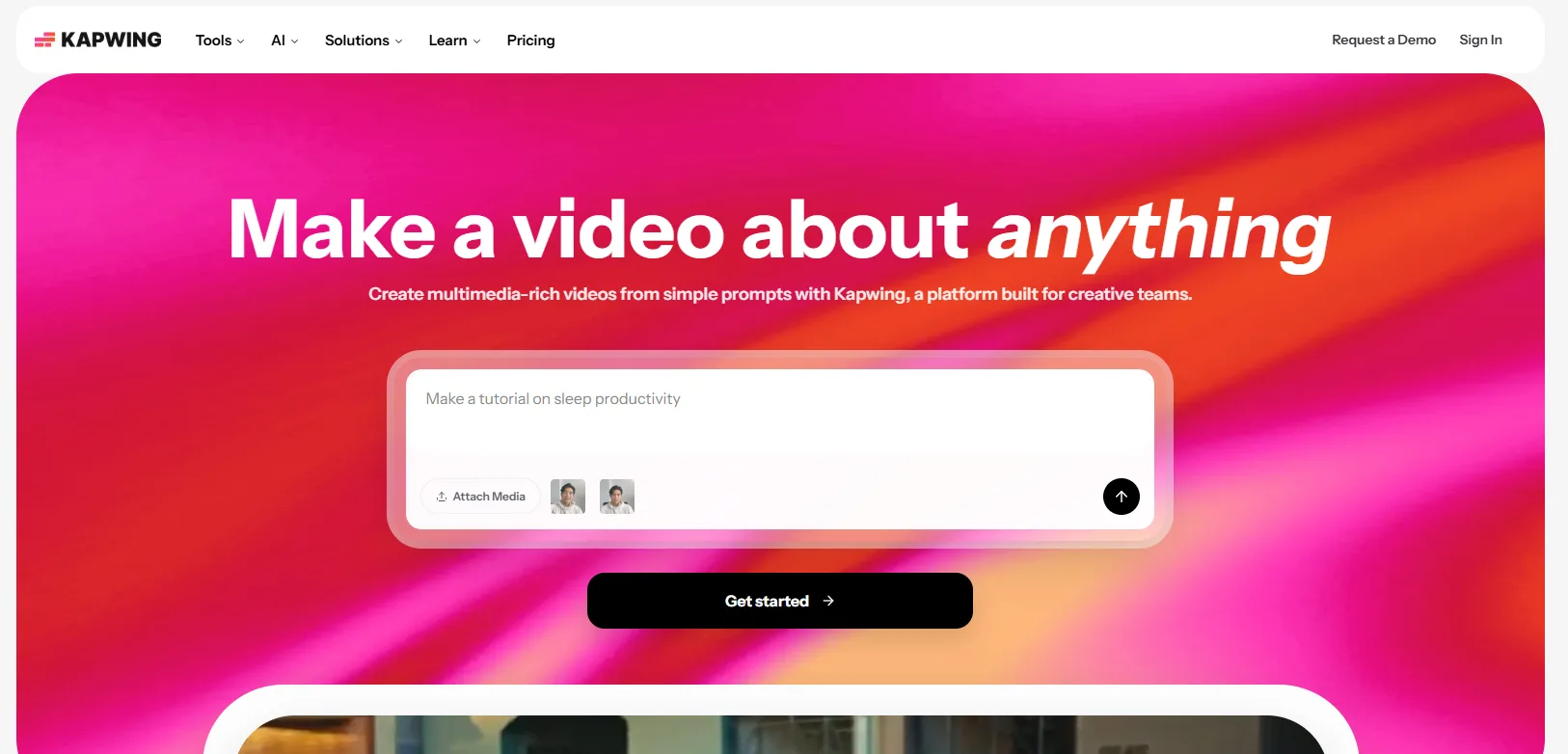
Kapwing is an online video editor built around a drag-and-drop timeline, and it runs entirely in the browser. The San Francisco company aims it at creative teams turning out social clips, captioned videos and repurposed long-form content.
Recording, background removal and subtitles sit in the same editor, so a clip can go from raw take to captioned cut without leaving the tab. Shared workspaces let teammates leave time-stamped comments and apply a Brand Kit, and resize presets turn one recording into several platform formats.
What You Get
Auto-subtitles: Kapwing claims 99% accuracy and translation into 100+ languages, with 100+ style presets and exports to MP4, SRT, VTT and TXT.
AI dubbing: Translates dialogue into 40+ languages.
Resize and repurpose: Presets for 16:9, 9:16 and 1.19:1, plus a Speaker Focus auto-reframe.
In-editor recording: Records from inside the editor, with one-click background removal.
Team workspaces: Shared workspaces, time-stamped comments and a Brand Kit.
What You Don't
Browser-bound performance: There is no desktop or offline option, and uploads can stall and exports can error on videos in the 10 to 15 minute range.
Specialist speech accuracy: AI captions can struggle with colloquial language and technical terms, so jargon-heavy videos need a manual pass.
Pricing
Free tier: Unlimited exports at 720p with a watermark, capped at 4 minutes per export, with 10 minutes of auto-subtitling.
Paid tier: Pro runs $192 a year, with no watermark and exports up to 2 hours.
Best For
Social media teams producing captioned clips in volume get the closest match to VEED here. The 100+ language subtitle translation, Speaker Focus resizing and shared workspaces cover the repeatable steps in that workflow, though long-form projects are safer in a desktop editor.
2. Flixier
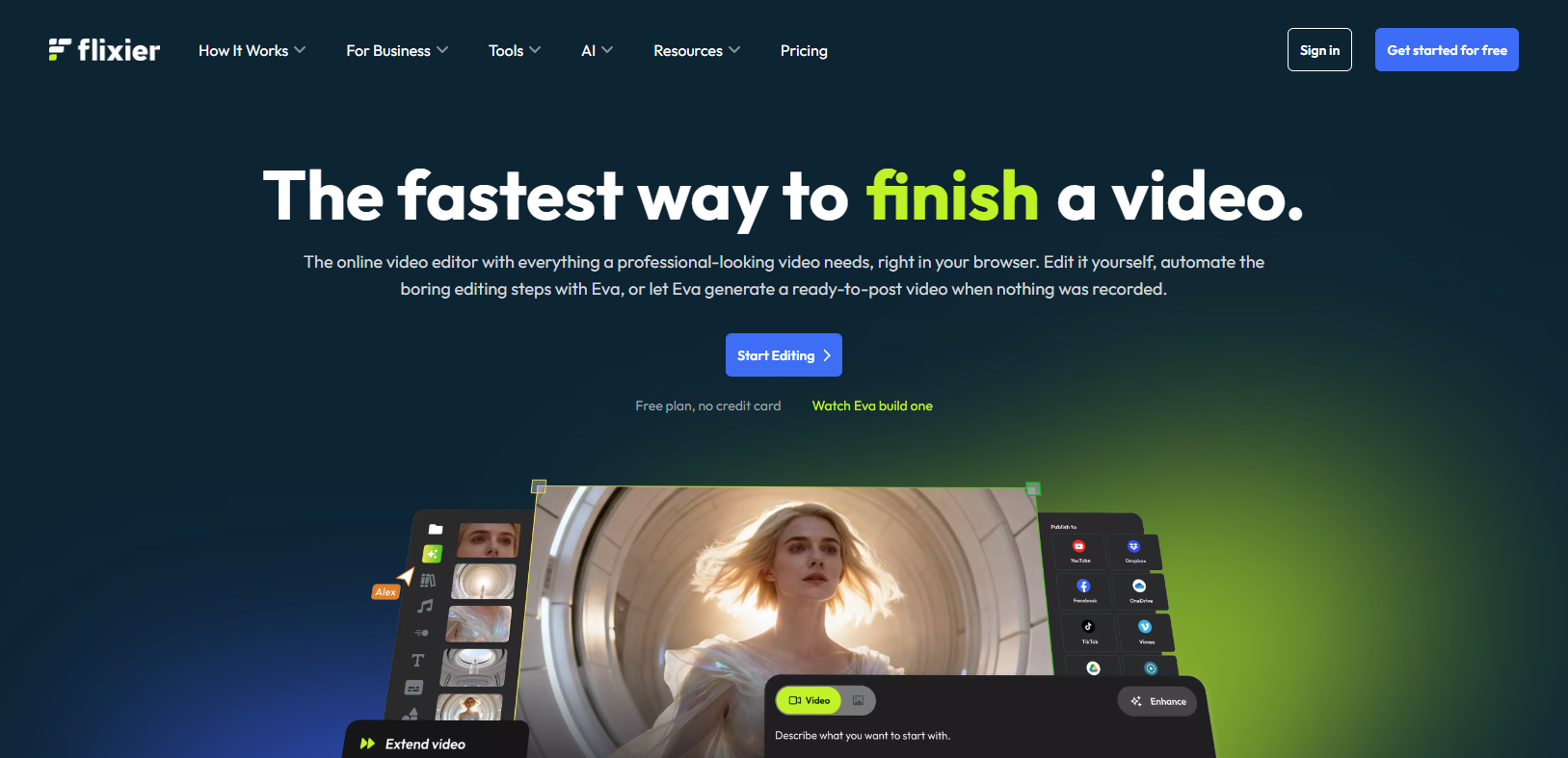
Flixier is a cloud video editor that runs in the browser with no download. It uses a multi-track timeline, and its Romanian maker, Flixier SRL, built it for real-time editing so teammates can work in the same project.
Recording takes in camera, screen or audio and includes a teleprompter, and resize presets cover 1:1, 9:16, 16:9 and 4:5. Subtitles run in 100+ languages and dubbing reaches 130+, while time-stamped review links let outside reviewers comment without a login.
What You Get
Auto subtitles: Covers over 100 languages with instant subtitle translation, exporting SRT, VTT, ASS, TTML and TXT.
AI dubbing: Dubs into 130+ languages with 100+ AI voices.
In-editor recording: Records camera, screen plus camera, screen alone or audio alone, with a teleprompter.
Review links: Supports time-stamped comments and real-time editing, and reviewers can comment without logging in.
Resize presets: Offers 1:1, 9:16, 16:9 and 4:5 with custom cropping, plus background removal without a green screen.
What You Don't
No offline mode: Flixier is a web app and needs a live internet connection, so editing stops when the connection does.
Slow renders on long projects: Long projects can take a long time to render, and the editor has no advanced visual effects or motion graphics tools.
Pricing
Free tier: 720p exports with a Flixier watermark, 10 minutes of export and 5 minutes of subtitles a month, and 2 GB of storage.
Paid tier: Starter is $19 per seat a month on monthly billing, with 52% off on yearly billing. It adds 1080p export, no watermark and 60 minutes of export a month.
Best For
Distributed teams spread across time zones benefit most from Flixier's review workflow. Login-free time-stamped links let outside stakeholders sign off on a cut without an account, and the browser-based setup runs on modest laptops.
3. Descript
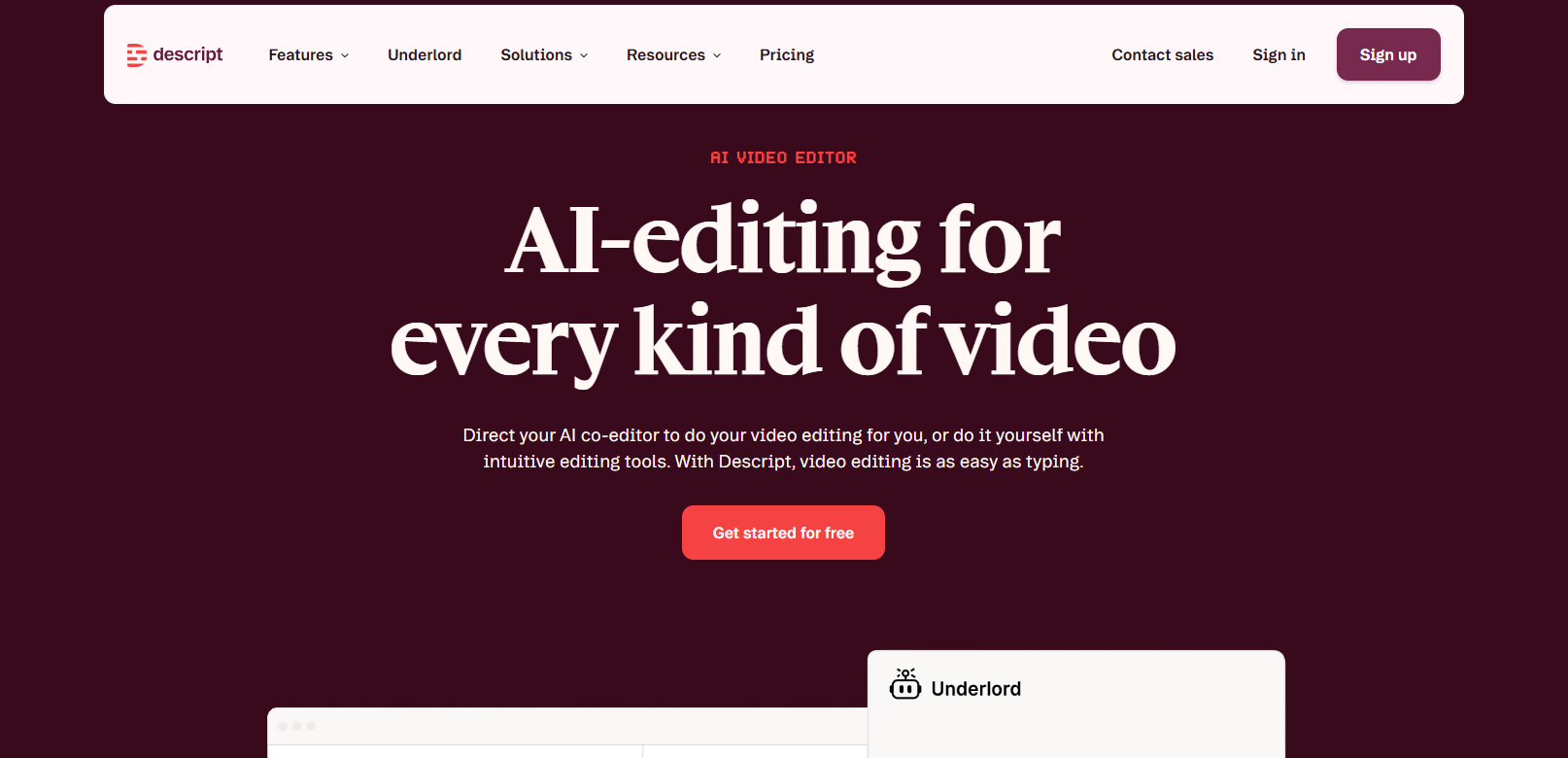
Descript is a video and audio editor where the transcript is the timeline, so deleting a word from the text removes the matching moment from the video. Editing spoken content feels closer to working in a document than dragging clips, which suits interviews, podcasts and webinars.
It runs as a Mac and Windows desktop app and as a web app in Chromium-based browsers such as Chrome and Edge. Underlord, its AI co-editor, removes filler words, trims silences, corrects eye contact and replaces backgrounds, and shareable review links with real-time team editing cover collaboration.
What You Get
Text-based editing: Cutting words from the transcript cuts the matching footage.
Transcription: Covers 26 languages, all written in the Latin alphabet.
Translation and dubbing: Offers caption translation, AI-voice dubbing and lip-sync.
Screen recorder: Records screen, webcam and microphone in the desktop app, up to 4 hours per recording.
Underlord: Removes filler words and silences, and adds Studio Sound, eye-contact correction and background replacement.
What You Don't
Narrow transcription coverage: All 26 supported languages use the Latin alphabet, so Chinese, Japanese and Russian audio cannot be transcribed.
No mobile editing: Descript's system requirements state that editing is not supported on phones or tablets, and the desktop app needs macOS 14 or Windows 11 or later.
Pricing
Free tier: 60 media minutes a month, 100 one-time AI credits and 5 GB of storage, with 720p exports carrying a watermark.
Paid tier: Hobbyist runs $192 a year, adding 10 media hours a month, 400 AI credits monthly and watermark-free 1080p export.
Best For
Interview shows, podcasts and webinars suit Descript best. Editing spoken content by deleting text, then cleaning the audio with Studio Sound and filler-word removal, cuts the time spent hunting through a timeline.
4. Clipchamp
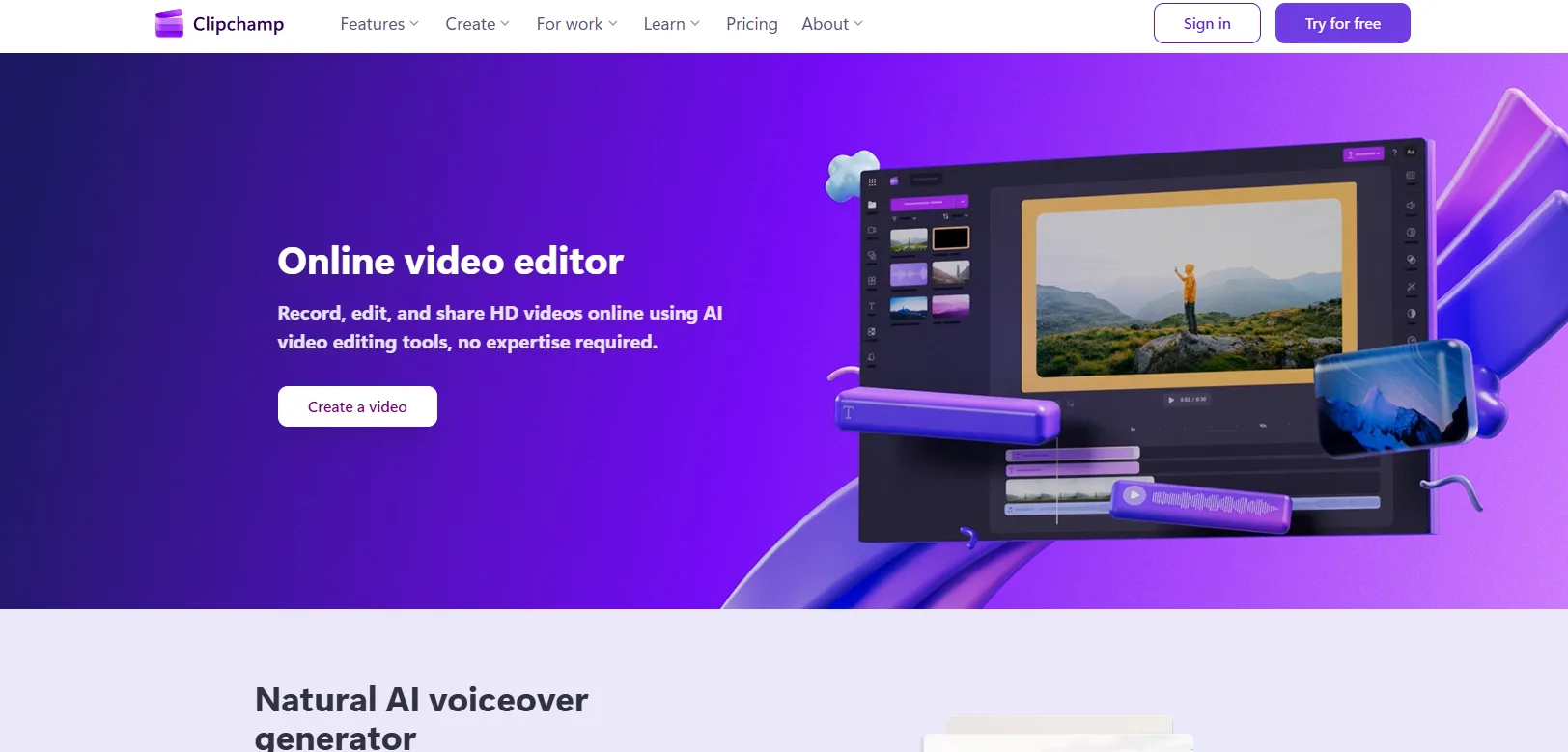
Clipchamp is Microsoft's video editor, available in the browser on Windows, macOS, Linux and Chromebook, and as a Windows app. It uses a familiar timeline with stock media, templates and text overlays, and Microsoft 365 Personal and Family subscribers get its Premium tier included.
Auto-captions cover 80+ languages with adjustable style, font and colors, and a built-in recorder captures screen and webcam together. Audio cleanup removes background noise and filler words, an AI voiceover tool turns text into speech in multiple languages, and the editor resizes to other aspect ratios.
What You Get
AI subtitles: Covers 80+ languages with adjustable style, font and colors.
Screen and webcam recorder: Records both together with unlimited retakes and no watermark.
AI voiceover: Turns text into speech in multiple languages.
Audio cleanup: Removes background noise and filler words.
Resize and background removal: Changes aspect ratios and removes image backgrounds with AI.
What You Don't
Light on pro editing tools: The editor lacks keyframe animation, motion tracking and multi-camera editing, and it can lag on large 4K source files.
Recorder length ceiling: The built-in recorder stops at 30 minutes per recording, so a long webinar or training session needs separate capture software.
Pricing
Free tier: Exports up to 1080p with no watermark.
Paid tier: Premium is included with Microsoft 365 Personal, which runs $99.99 a year, and adds 4K export, premium stock, filters and effects, and a brand kit.
Best For
For an office already running on Microsoft 365, Clipchamp is the easiest editor to start using. The free 1080p export without a watermark, 80+ language captions and built-in recorder cover short explainers and social clips without a separate purchase.
5. Canva Video Editor
Canva Video Editor is a drag-and-drop, multi-layer timeline editor built into Canva's design suite, and it runs in the browser and in desktop apps. Video projects share brand kits, fonts and templates with the graphics built in the same account.
Captions cover 69 languages, an AI translator dubs into 29, and recording captures camera, screen or both inside the editor. Exports run from 480p to 4K, with 4K on desktop, and Canva, founded in 2013, has more than 220 million monthly active users.
What You Get
Auto captions: Covers 69 languages, with captions placed inside the exported MP4.
AI video translator: Dubs into 29 languages while preserving the speaker's voice.
In-editor recording: Records camera, camera plus screen, or screen alone, in Chrome and Safari.
Background removal and Magic Resize: Removes video backgrounds without a green screen, and Pro's Magic Resize converts aspect ratios.
Export options: Outputs MP4 at 480p, 720p, 1080p or 4K, with 4K on desktop.
What You Don't
Upload ceiling: Canva's upload requirements cap each video at 1 GB, and 4K uploads are stored downscaled to 1080p even when exported at 4K.
No codec or bitrate control: Exports give no control over codec or bitrate, so hitting a platform's file limit means working backward with a bitrate and file size calculator.
Pricing
Free tier: $0 with 5 GB of storage and 20 AI uses a month, with exports of up to 1080p and 30 minutes.
Paid tier: Pro runs $144 a year, with 100 GB of storage and video exports up to 2 hours.
Best For
Marketing teams already building decks, posts and ads in Canva can add video without leaving the tool. Brand kits carry fonts and colors from static designs into video, and 69-language captions cover the multilingual social cuts that follow.
6. CapCut
CapCut is ByteDance's video editor, offered on the web, on desktop for Windows and macOS, and on mobile. The web version is a multi-track browser timeline, while the desktop app adds heavier export options including 4K at 60 fps.
CapCut adds AI tools for translated subtitles, auto reframing and background removal, plus a free in-browser screen recorder. In March 2026 it introduced a new Standard plan and an upgraded Pro plan, with Pro AI points rising from 550 to 1,200 and cloud storage from 100 GB to 1 TB.
What You Get
Translated subtitles: Covers over 27 languages.
Screen recorder: A free in-browser recorder captures a tab, window or full screen plus webcam and system audio, and exports without watermarks.
Auto Reframe and cutout: Reframes footage to other aspect ratios and removes backgrounds on desktop.
4K export: Desktop exports reach 4K at 60 fps.
Pro AI tools: Pro adds AI avatars and camera tracking, along with team templates and brand libraries.
What You Don't
Web editor hardware demands: CapCut's help center lists 8 GB of RAM as the minimum for 4K export in the web editor and recommends 16 GB or more.
Lighter color and audio tools: Color grading and multi-layer audio mixing are lighter than in a desktop suite such as DaVinci Resolve.
Pricing
Free tier: Standard costs nothing and covers cutting, effects, captions and basic audio editing, though premium templates, advanced effects and AI tools require Pro.
Paid tier: Pro runs $179.99 a year, with about 1 TB of cloud storage, advanced AI tools and team collaboration features.
Best For
CapCut works well for creators who edit across phone and desktop and publish mostly vertical video. The free browser screen recorder, Auto Reframe and template-driven captions speed up short clips, while broadcast-grade color and audio work calls for a heavier tool.
7. CoAnimator
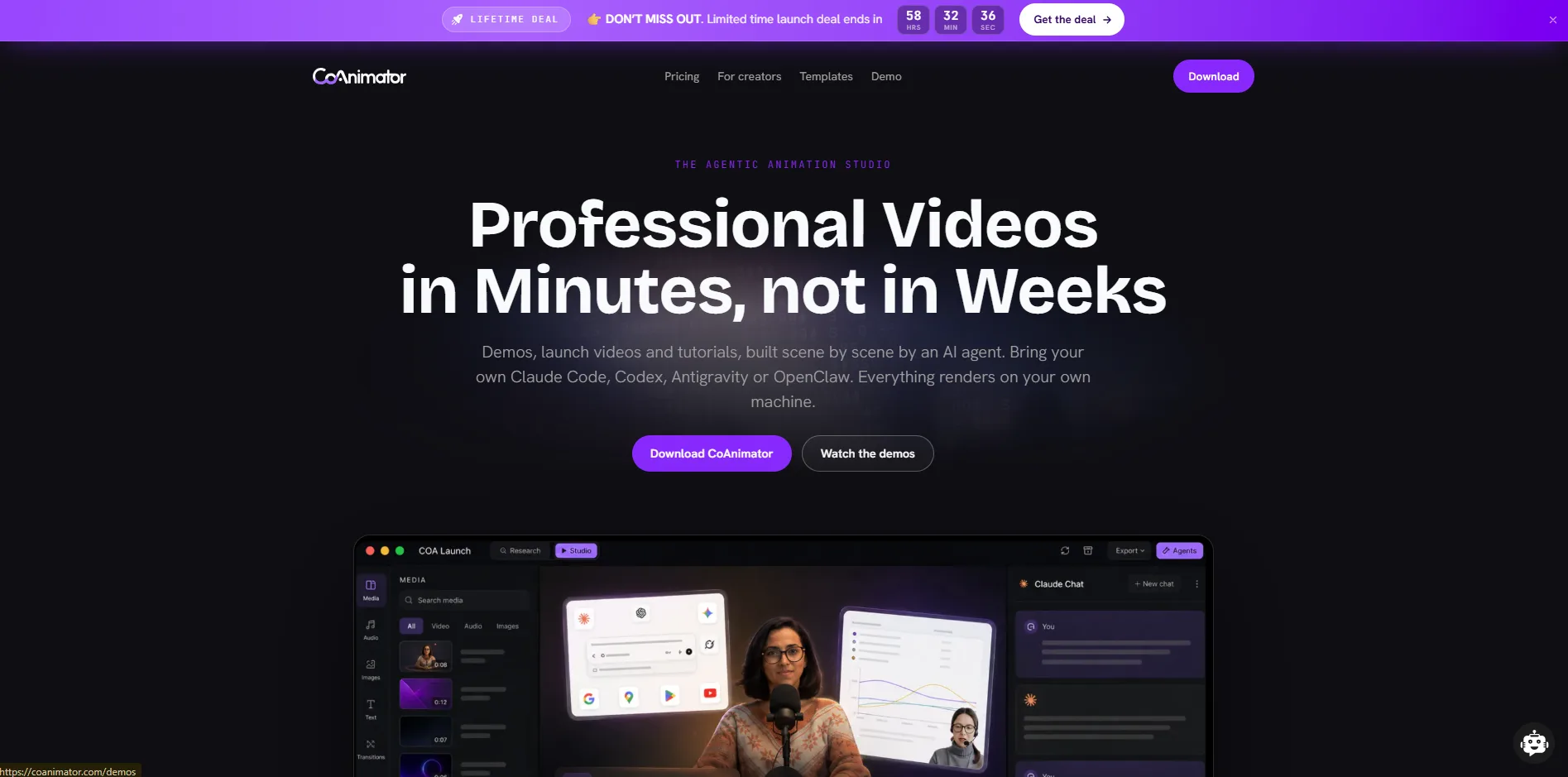
CoAnimator is an agentic animation studio, a desktop app where a connected AI agent such as Claude Code or Codex builds and edits videos from plain-language descriptions. On real footage, the agent adds effects, captions and overlays.
Every edit is saved into an ordinary project file, so a video can be reopened weeks later and changed one scene at a time. Rendering runs on the local machine, so exports have no usage limits and work offline, and a command-line tool renders videos from scripts and automated pipelines without opening the app.
What You Get
Footage editing by description: Describe the look, and the agent writes effects, captions and overlays onto a recording.
Free caption tool: A caption generator running in the browser uses Whisper speech recognition, supports line-by-line edits and retiming by tenths of a second, and exports SRT, VTT or burned-in video with no upload.
Local rendering: Exports are unlimited, with no cloud queue.
Editable project files: A video can be reopened weeks later, changed in one scene and re-rendered, and tools such as git can track every change.
Templates and command line: Ready-made templates include a talking-head tutorial and podcast effects, and the coa command-line tool renders videos from scripts or automated pipelines.
What You Don't
Agent required: Editing needs a connected AI agent, and the available actions depend on the agent's capabilities, permissions and configured tools.
No built-in screen recorder: Version 0.7.2 has no desktop screen recorder, so screen footage has to be captured with other software first.
Pricing
Lifetime free tier: Unlimited renders at up to 720p with a "Made with CoAnimator" watermark, with no card required.
Best For
When a product or engineering team already works with a coding agent, CoAnimator fits the same habit. Updating a demo after an interface change means editing one scene in the project file instead of re-recording the whole walkthrough.
8. Filmora
Filmora is Wondershare's video editor for Windows, macOS, iOS, iPadOS and Android, with a newer online editor at Filmora.tv. Version 16 is the current release, built as a timeline editor with AI tools layered in for captions, translation and reframing.
The guided desktop interface places it between a browser editor and a professional suite, and a built-in screen recorder, 45-language speech-to-text and lip-synced AI video translation come with it. Reframing handles other aspect ratios, and the Basic plan adds a library of more than 2.9 million creative assets.
What You Get
Auto captions: Speech-to-text covers 45 languages and dialects with up to 99% accuracy under ideal conditions, SRT export and 68 animated caption templates.
AI video translation: Translates video with voice cloning and lip sync.
Screen recorder: Records screen, camera, microphone and system audio at once on separate tracks, with webcam background blur or replacement.
Reframing: Reframes footage for different aspect ratios, plus 360-degree reframing.
Cloud and assets: The Basic plan includes 1 GB of cloud storage and 2.9 million creative assets, and paid plans export 4K without a watermark.
What You Don't
No AI avatars yet: Filmora's Photo to Talking Video feature is marked coming soon, so it has no counterpart to VEED's avatar tools today.
Short lip-sync window: Lip sync is limited to videos under 5 minutes, and processing takes about 8 minutes per minute of video.
Pricing
Free tier: A free version is available, with a watermark on exports.
Paid tier: Basic runs $49.99 a year, with 1 GB of cloud storage and watermark-free 4K export.
Best For
A solo creator making tutorials and short-form video can cover most of the workflow in one desktop app. The built-in multitrack screen recorder, 45-language captions and lip-synced translation for clips under five minutes remove the need for a second tool.
9. DaVinci Resolve
DaVinci Resolve is Blackmagic Design's desktop application for editing, color correction, visual effects, motion graphics and audio post-production in one program, running on Mac, Windows and Linux. Work moves between dedicated pages for cutting, editing, effects, color, audio and photo.
Resolve 21 is the current major version, with 21.1 released on September 8, 2026. A free version covers the core editing, color and audio workflow, and collaboration through Blackmagic Cloud, while the paid Studio version adds AI tools such as voice isolation, Magic Mask for tracking objects and Super Scale for upscaling low-resolution footage.
What You Get
Multi-user collaboration: Blackmagic Cloud collaboration lets several editors work on one project, and it is available in the free version.
Subtitle and caption tools: The Edit page includes captioning and subtitle tools, and Quick Export uploads straight to YouTube, Vimeo or Dropbox.
Vertical video: Supports vertical video formats and direct uploads to YouTube and TikTok.
Studio AI tools: Studio adds voice isolation, a music remixer, a dialogue separator, Magic Mask and Super Scale upscaling.
Color and audio: Dedicated color and audio pages give professional grading and mixing inside the same project.
What You Don't
No built-in subtitle translation: Resolve 21 cannot translate subtitles, so an SRT file has to be translated elsewhere and imported, and no avatar or dubbing feature appears in Blackmagic's documentation.
Heavy hardware needs: The Windows minimum is 16 GB of memory (32 GB for effects work) and 4 GB of graphics memory, and Studio's AI tools need 16 GB of graphics memory.
Pricing
Free tier: No cost and perpetual, with exports up to Ultra HD at 60 fps.
Paid tier: Studio costs $295 as a one-time purchase, since Blackmagic sells no annual plan.
Best For
Freelance editors and small studios comfortable with a desktop workflow should pick Resolve. Free access to professional color and audio tools, plus a $295 one-time Studio upgrade, suits long-form and client work where local performance matters more than built-in translation or avatars.
Quick Comparison
The table sets the nine side by side on the points that separate them most.
Tool | Editing Model | Captions and Translation | Free Plan Limits | Ease of Use | Best For |
|---|---|---|---|---|---|
Kapwing | Browser timeline | 100+ language subtitle translation | 720p, watermark, 4-minute exports | Familiar timeline with little setup | Social media teams producing captioned clips |
Flixier | Cloud multi-track timeline | 100+ subtitle languages, 130+ dubbing languages | 720p, watermark, 10 minutes of export a month | Lightweight browser editor with login-free review links | Remote marketing teams |
Descript | Transcript-based, desktop and web | 26 Latin-alphabet transcription languages | 60 media minutes a month, 720p, watermark | Word-processor style editing takes adjusting to | Podcasters and interview creators |
Clipchamp | Browser and Windows timeline | 80+ caption languages | 1080p, no watermark | Simple timeline with templates and stock media | Offices running on Microsoft 365 |
Canva Video Editor | Design-suite timeline | Captions in 69 languages | 1080p up to 30 minutes, 5 GB storage | Drag-and-drop inside a familiar design tool | Marketing teams building branded social video |
CapCut | Web, desktop and mobile timeline | Translated subtitles in 27+ languages | Standard tier free, AI tools and premium assets need Pro | Template-driven with mobile-style controls | Social-first creators |
CoAnimator | Agent-directed, local desktop | Free browser caption tool with Whisper transcription | Lifetime free at 720p with watermark, unlimited renders | Prompt-based and needs a connected AI agent | Product and engineering teams |
Filmora | Desktop timeline | 45-language speech-to-text | Watermark on exports | Guided desktop interface with templates | Solo creators |
DaVinci Resolve | Desktop page-based | Subtitle tools built in, translation handled outside | No cost, up to Ultra HD at 60 fps | Steepest learning curve of the nine | Freelance editors and small studios |
Read across the rows and the split is clear. Browser editors trade depth for speed, desktop tools trade speed for control, and the agent-directed option trades clicks for descriptions. Shortlist two editors from different rows and compare them on your own footage.
How to Choose a VEED Alternative
We run the same checks before any tool goes near client work, and they apply directly to choosing a VEED replacement. Work through them in order and nine options shrink to two or three.
Match the editing model: Choose a transcript-based editor if your videos are mostly speech, and a timeline or agent-directed tool if they are product footage with graphics.
Check caption accuracy on real audio: We treat an automatic transcript the way we treat an automated accessibility scan, as a first pass that still needs a human read. Run a test clip full of the jargon your videos contain.
Confirm export limits: Compare resolution, watermark policy and maximum export length on the free plan against what your platform publishes, and check frame sizes with an aspect ratio and frame calculator.
Test repurposing: One master should feed every platform. We cut a 90-second launch film into nine cuts from one master across three aspect ratios, including a silent-first version, so try each tool's resize feature on a clip of your own.
Weigh the recording ceiling: Recorder length caps of 30 minutes to 4 hours decide whether your long webinars need separate capture software.
Plan for team review: Time-stamped comments and login-free review links matter once more than one person signs off on your videos.
Two or three test runs on your own footage will tell you more than any feature table, and the free tiers exist for exactly that.
Questions
5What is the best free VEED alternative?
Pick DaVinci Resolve for free desktop editing with no watermark, or Clipchamp for a free browser editor that exports 1080p without one.
Which VEED alternative has the best auto subtitles?
Kapwing and Flixier lead on language count with 100+ each, followed by Clipchamp at 80+ and Canva at 69. Accuracy matters more than language count, so read the transcript before export, because auto captions miss jargon.
Is VEED.io free to use?
VEED has a free plan that exports at 720p with a watermark, and downloading subtitle files requires a paid plan.
How do I keep captions readable after export?
Export a short test clip, upload it to the platform and check the captions at the size viewers will see them, because legibility after compression is the real test. Then confirm the text stays readable over varied backgrounds, including pale, dark and moving frames.
Are AI avatars and dubbed voices safe to use in client work?
Yes, as long as the client knows and you keep a record. We note any generative tools that contribute to a deliverable in the production notes, along with who reviewed the result, and you should do the same on client work. Check the contract too, since some clients restrict synthetic voices and faces.
Where Video Editing Is Heading Next
AI now writes or generates parts of the edit in several of these editors. Descript's Underlord cuts filler words, CapCut builds avatars and CoAnimator's agent edits by description, and each still needs a person to check the result before it ships. Until an editor removes that step, choose on what you can test today, which means caption accuracy on your own audio, export limits on the free plan and how the editor copes with your longest video.
For videos that need a human owner from script to final cut, we produce product films, launch pieces and explainers with captions and platform versions included, and you can send us a brief to start.