How to Convert PowerPoint to Video: 3 Easy Methods
Convert PowerPoint to video three ways: PowerPoint's built-in MP4 export, Canva's online converter, or an AI agent rebuild. Steps, settings and limits.
Building the PowerPoint deck for your SaaS product or project already takes real effort. Converting it into a video takes even more, and getting it wrong wastes both. By default, every slide gets five seconds, whether it holds one line or a dense chart. A long deck can take hours to export, and the result often drops media from older files or turns projector-sized text unreadable on a phone.
There is more than one way to convert PowerPoint to video, and each trades speed for a different kind of control over layout, animation and how well the video survives being watched later on a phone or reused for a different update. Pick the wrong one and the fix is a redo, not a quick edit.
So here are the three best ways we've found to turn your PowerPoint into a video, laid out so you don't have to struggle through the trial and error yourself.
Prepare Your PowerPoint for Video
Every conversion method inherits the deck's flaws, because a video is a fixed sequence and a viewer cannot scroll back to reread a dense slide. We resolve structure before craft on every video we make, and a deck is the cheapest place to start.
Trim each slide to one claim: Split a slide whenever its claim changes, the same rule as cutting on the change of intent. Six bullets on screen at once cannot be read inside a five-second default.
Set the slide size first: The exported video follows the slide's proportions, so a 16:9 deck produces a 16:9 video. Work out the frame dimensions for each delivery format before designing, since reshaping a finished layout means rebuilding it.
Embed media instead of linking it: Microsoft notes that media inserted in older versions of PowerPoint stays linked and is dropped from the export. Upgrade it through File, then Info, then Convert, so the clip is embedded and exports correctly.
Enlarge body text: Small grey type over a photograph is the first thing to fail on a phone screen, so set body copy larger than a projector deck needs.
With one claim per slide, a slide size matched to the destination and embedded media, any of the three methods has clean material to work from. The first route needs nothing beyond PowerPoint itself, which makes it the natural place to start.
Method 1: Convert PowerPoint to Video
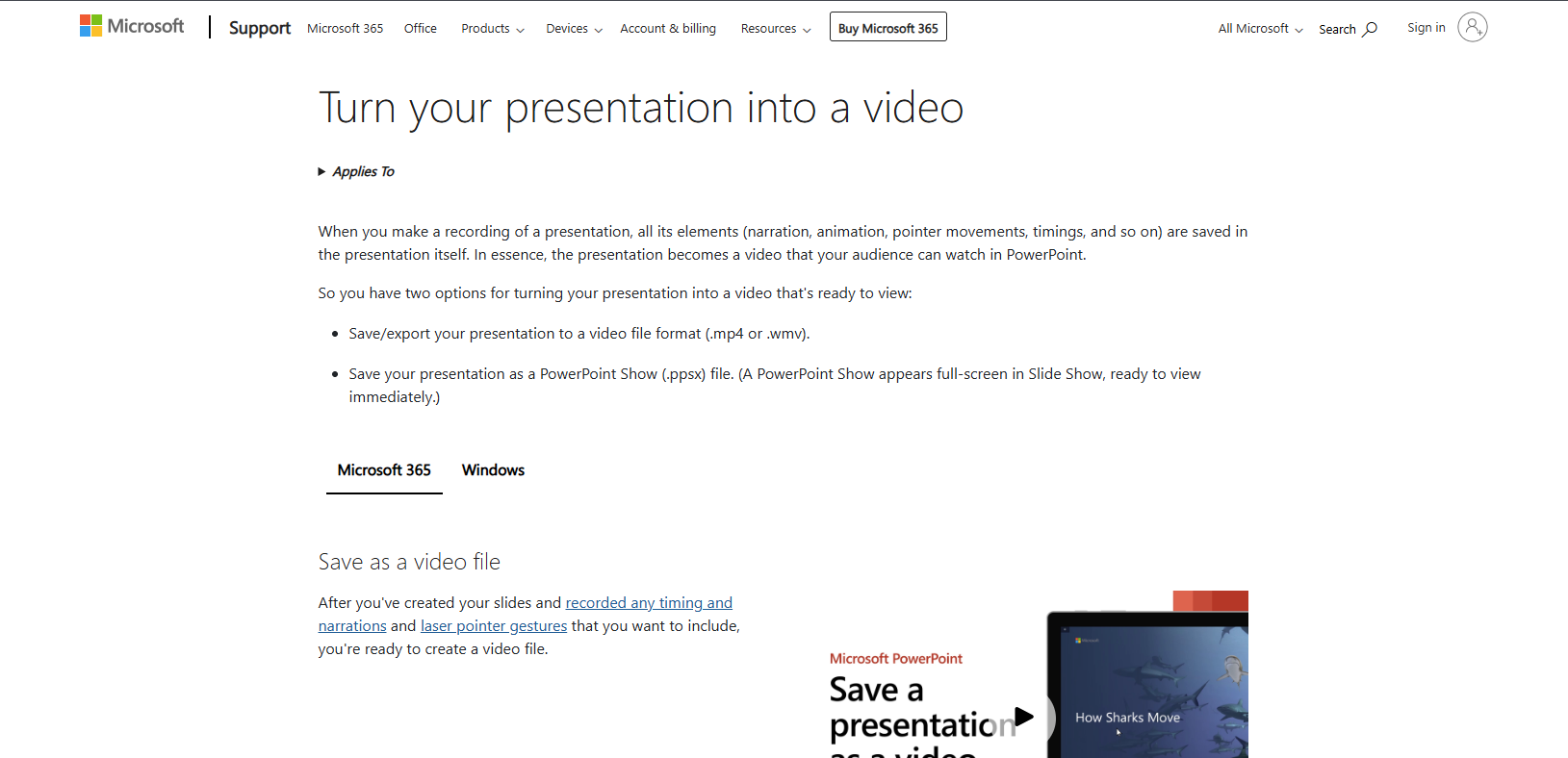
PowerPoint's video export is a built-in feature of the desktop app that lets you save PowerPoint as video in MPEG-4 (.mp4) or Windows Media Video (.wmv) format. It costs nothing beyond the PowerPoint licence and it carries animations, transitions, recorded narration and laser pointer movements into the file.
The trade-offs are time and gaps. Microsoft says the export can take up to several hours for a long or complex deck, and macros, ActiveX controls and QuickTime media are left out of the video.
Steps on Windows
The export lives inside PowerPoint's own File menu, so nothing extra needs installing.
Save the deck as a .pptx so the latest edits are included.
Select File, then Export, then Create a Video. The Export to Video button on the Recording tab opens the same options.
Choose the quality. Ultra HD (4K) is 3840 x 2160 and needs Windows 10 or later, Full HD (1080p) is 1920 x 1080, HD (720p) is 1280 x 720 and Standard (480p) is 852 x 480. Higher quality means a larger file.
Choose whether to use recorded timings and narration. Without recordings, set the seconds spent on each slide, which starts at 5.
Select Create Video, name the file and pick MPEG-4 Video as the type. Progress shows in the status bar and you can keep working in PowerPoint while it runs.
Record narration in a quiet room and confirm that essential speech is understandable on a phone speaker before adding any music. Animations survive the export too, so review them first, keeping the ones that explain change and cutting the ones that add nothing but waiting.
Steps on Mac
On Mac, choose File, then Export, because Save As offers no video options. Open the File Format list, pick MP4 or MOV, select the quality, tick Use Recorded Timings and Narrations if you recorded them, and choose Export. Microsoft's Mac instructions warn that several transitions play differently in a movie and that embedded media other than recorded narration may not play, so test any deck containing clips before sending it.
Best for
A trainer or manager recording a narrated walkthrough for colleagues gets the most from the built-in export. Recorded timings and pointer movements travel into the file with no extra software involved.
Once exported, the video no longer gives access to individual slide elements, so fixing one slide means exporting the whole deck again. When the deck needs real pacing and narration instead of timed stills, rebuilding it is the next step up.
Method 2: Rebuild the Deck in CoAnimator

CoAnimator is an agentic animation studio for macOS, Windows and Linux that lets an AI agent such as Claude Code or Codex build a video from a description. For a PowerPoint deck, the agent reads the .pptx, keeps its structure, copy and data, and authors animated scenes with narration instead of exporting slides as frames. The free tier is lifetime free and renders locally without limits, capped at 720p with a watermark.
CoAnimator has no one-click .pptx import button, so the work runs through an agent you connect and a brief you write, and the result depends on that agent and the voiceover provider behind it. For a single deck needed today, PowerPoint's own export is faster.
Steps in CoAnimator
There is no upload screen here. The agent works from the file directly, in whatever coding-agent interface you already have open.
Point the agent at the .pptx. It reads the file as the zip of XML underneath, with no import step in between.
Say what the video is for. A sales follow-up, an onboarding module and a conference talk pull different sections from the same deck.
The agent authors the scenes. Headings become titles, bullet lists become timed beats and tables become animated figures.
Narration lands timed. The voiceover drafts from your slide content, and the animation times itself to the voice.
Re-render when the numbers change. Update the chart data and render again, rather than rebuilding the deck from scratch.
Why it holds up over time
Because nothing is baked into frames, next quarter's figures mean a re-render instead of a redo. A deck whose numbers change on a schedule suits programmatic video, where one designed template renders every new version, much as a reusable template we built for a customer year-in-review project generated 41,206 videos in one run. The same discipline covers disclosure, since whenever generative tools contribute to a video, we name the tool, its purpose and the person responsible, a habit that suits any video an agent builds from a deck as much as one built in-house.
Best for
A team reporting figures on a schedule, such as monthly metrics or quarterly reviews, gains the most from a rebuild. It suits people comfortable directing an AI coding agent from a written brief.
A rebuild takes more effort up front than an export, and the payoff is a video built from the argument instead of the layout. For a deck that needs nothing more than a quick, editable pass online, a converter is the lighter tool for the job.
Method 3: Convert PowerPoint to MP4 in Canva

Canva is an online design platform whose PPT to MP4 converter imports a PowerPoint file, lets you edit it in the browser and downloads the result as an MP4. Import accepts .pptx files up to 300MB, with up to 300 slides and 1,400 elements per file. The free plan downloads MP4 videos up to 30 minutes long at a maximum of 1080p, while paid plans reach 2 hours and 4K.
The importer rebuilds the deck in Canva's editor, and Canva's help pages list the gaps. Charts, SmartArt, 3D objects and WordArt are ignored, and fonts are matched where possible rather than exactly, so the converted deck needs a slide-by-slide review to confirm the reading order still comes through once a substitute font changes each line's weight.
Steps in Canva
The whole process runs in the browser, from upload to download.
Open Canva's PPT to MP4 converter, select Upload your file and add the .pptx.
Review every slide. Recreate any chart, SmartArt graphic, 3D object or WordArt as an image or a native Canva element, and check the fonts.
Adjust text, images and slide order in the editor.
Select Share, then Download, set the file type to MP4 Video and choose the quality from 480p, 720p, 1080p or 4K on desktop. On the free plan, changing the quality from the default triggers an upgrade prompt, so keeping the default avoids it.
Select Download and open the MP4 to confirm every slide made it across.
Best for
Someone without desktop PowerPoint, or a marketer who wants to restyle a deck before sharing it, will find this the fastest way to convert PowerPoint to video free. A browser and a .pptx file are all the setup it needs.
The converter turns slides into frames, so the finished video keeps the deck's layout and pacing. Whichever of the three routes you took, a few settings decide how the file behaves once it leaves your machine.
Choose Video Resolution and Timing
Resolution, timing and file size behave the same way in every method, and they decide whether the video plays smoothly where it is watched. Set them from the destination backwards.
Resolution: Microsoft's guidance is Full HD (1080p) for computers and HD screens, 720p for the internet and 480p for portable devices, with 4K reserved for large monitors.
Seconds per slide: Read each slide aloud at a natural pace to find its real duration. A title slide may need two seconds and a chart eight, so a flat five seconds suits neither.
File size: Use the tool to estimate the file size for a chosen duration and bitrate. A two-minute 1080p30 video at 8 Mbps with 192 kbps audio comes to about 122.9 MB.
Format: Choose MP4 over WMV where the choice exists, since MP4 is supported more broadly, especially on hardware devices.
With resolution, timing and size settled, the exported file still deserves a proper viewing before it reaches anyone else.
Check the PowerPoint Video Before Export
A deck that looks right in the editor can change after export and again after a platform re-encodes the upload, so review the delivered file rather than the source. We check titles in the delivered video at the size people will watch, and the same file deserves the same check on sound and motion.
Opening frame: Watch the first three seconds and stop. If a stranger would not continue, rework the first slide so the opening has a clear purpose.
Text at phone size: Play the MP4 on a phone at arm's length. A platform re-encodes each upload, so judge whether titles and captions stay legible after compression on the version people receive.
Audio: Play the file on a phone at half volume with some background noise going, and re-record any line that disappears.
Animations and clips: Watch every slide with an animation or embedded clip from start to finish, because linked media and unsupported object types are the usual casualties.
Transitions: Confirm each transition plays as intended, since some play differently in a video than in a slideshow.
A short review pass on the exported file catches the problems an export cannot flag itself. Afterwards the video is ready to upload, email or embed.
Questions
5Can you convert PowerPoint to video for free?
Yes. PowerPoint's built-in export costs nothing beyond the PowerPoint licence, Canva's free plan downloads MP4 files up to 30 minutes long, and CoAnimator's free tier renders locally at 720p with a watermark.
Does PowerPoint keep animations and narration when it exports to MP4?
Yes. Animations, transitions, recorded narration and laser pointer movements are saved into the video, although media linked from older files is dropped and a few transitions play differently.
Can Google Slides convert to video?
Google Slides has no native MP4 export as of this writing, so download the deck as a .pptx and use PowerPoint's export or one of the other two methods.
What resolution should a PowerPoint video use?
Full HD (1080p) suits computers and HD screens, 720p suits the web and 480p keeps files small for portable devices. Reserve Ultra HD (4K) for large monitors, since a laptop or phone screen cannot show the extra pixels.
How long does each slide stay on screen?
Five seconds by default when no timings are recorded. Change it in the Seconds to spend on each slide box, or record timings and narration to set the pace slide by slide.
Build Your Next PowerPoint for Video
As agent-driven rebuilds get faster, the conversion method stops being the bottleneck and the deck's own structure takes its place. A deck built for a room, six bullets a slide, a title with no argument under it, needs restructuring no matter which of the three routes above touches it, while a deck already shaped like a script gets a usable video out of any of them with almost no rework.
The move worth making now is to write the narration line into the speaker notes as each slide gets built, before a single bullet goes on it. A single habit like that separates a deck that converts in an afternoon from one that needs rebuilding from the ground up, and it costs nothing beyond the discipline of doing it in that order. We write the case on one page before the script on every film we make, which is why a deck built the same way arrives at export already halfway to being a video.